
To process claims in Lytec & Revenue Management to send to eMedix clearinghouse, follow these instructions:
1. In Lytec, go to Billing, then Revenue Management, then Revenue Management.
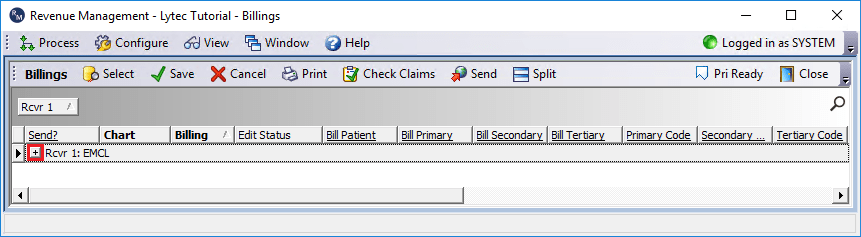
2. Optionally; Click the + symbol/button to the left of “Rcvr 1: EMCL”.
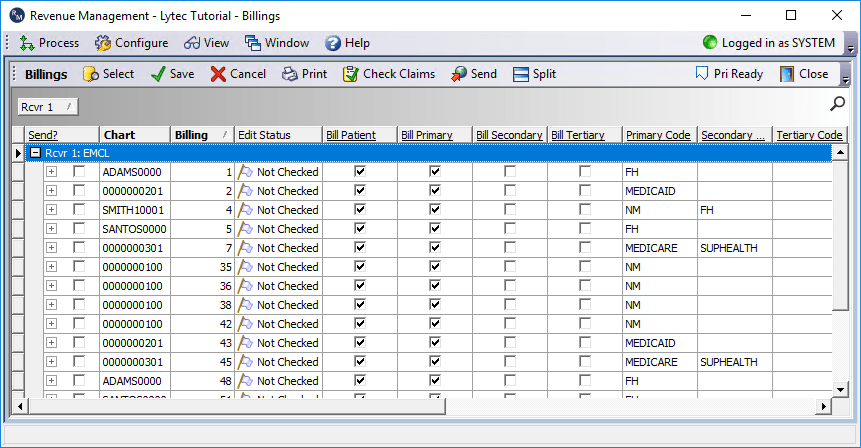
This will expand the list, showing the claims that are presently available to send.
3. Click Check Claims, then EMCL.

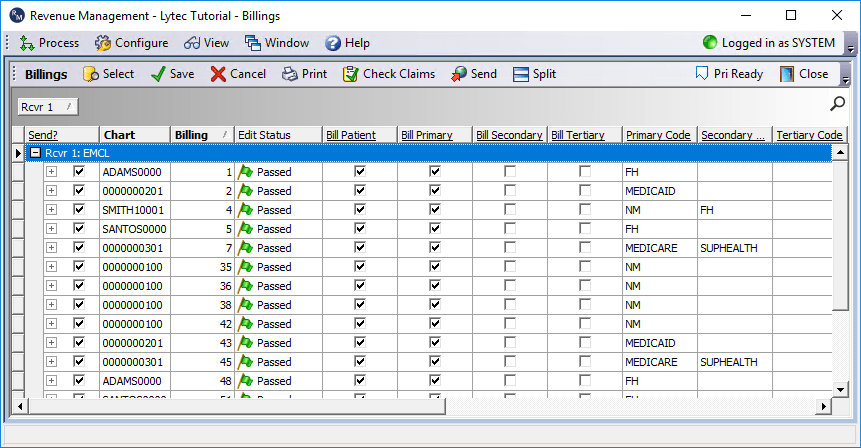
4. After the “Check Claims” function finishes, claims will show a red, yellow, or green flag under the “Edit Status” column. A red flag indicates an issue that would likely cause the claim to reject. A yellow flag indicates there might be an issue that could cause the claim to reject, or may affect payment rate. A green flag indicates the claim has passed edits, and will likely be successful.
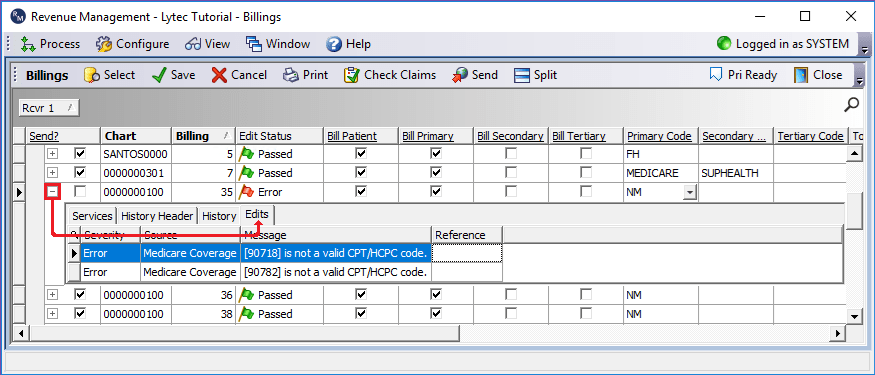
5. Optionally; If a claim has “Error” (red flag) or “Warning” (yellow flag) status, click the + symbol/button to left of the checkbox, to expand details for the claim. Next select the Edits tab. This will display the issues Revenue Management found in the claim.
6. At this point, if there are error/warning claims, you can either go back to Lytec to correct the issues, or proceed with sending the passing claims. The error/warning claims will remain in the list. You can force the claims to send anyways, by checking the box under the “Send” column.
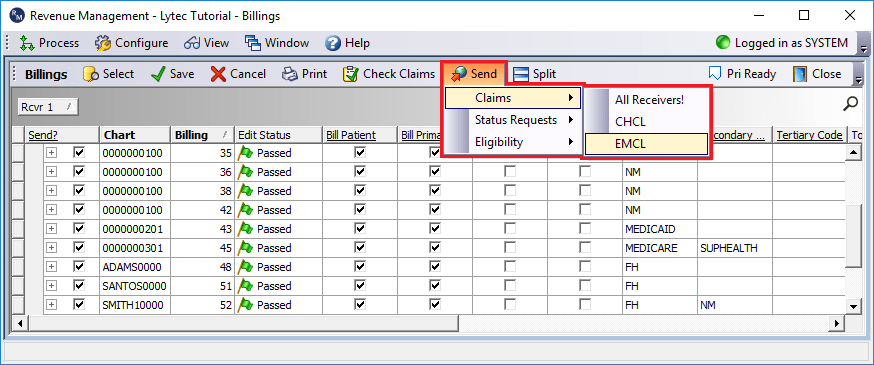
7. To proceed, click Send, then mouse-hover over Claims, then click EMCL.
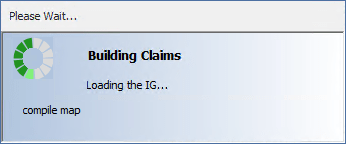
8. A small window will appear, indicating the system is “Building Claims”.
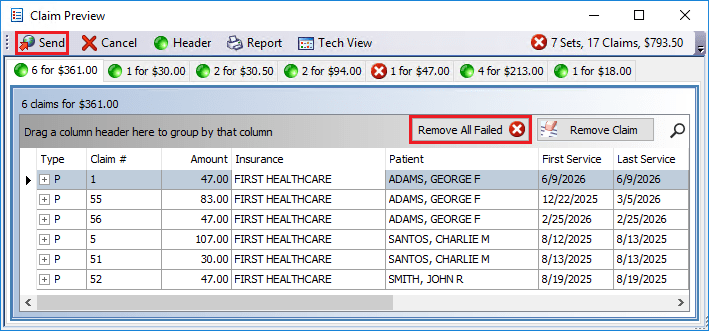
9. Next, the “Claim Preview” window will appear. Claims will be divided amongst tabs, based on the Insurance. Check the tabs for a red circle, indicating issue(s) found, or green circles indicating no issue(s) found. Like before, you can click the + symbol/button to expand claim details if any claim issues are found. Click the Remove All Failed button to remove claims with issues from the batch. Click Send when ready.
10. Once sent, the Claims Preview Report will appear, and can be printed if needed.
